
 SpokeFlow · Windows 11 & 10
A ring of actions, right where your pointer is.
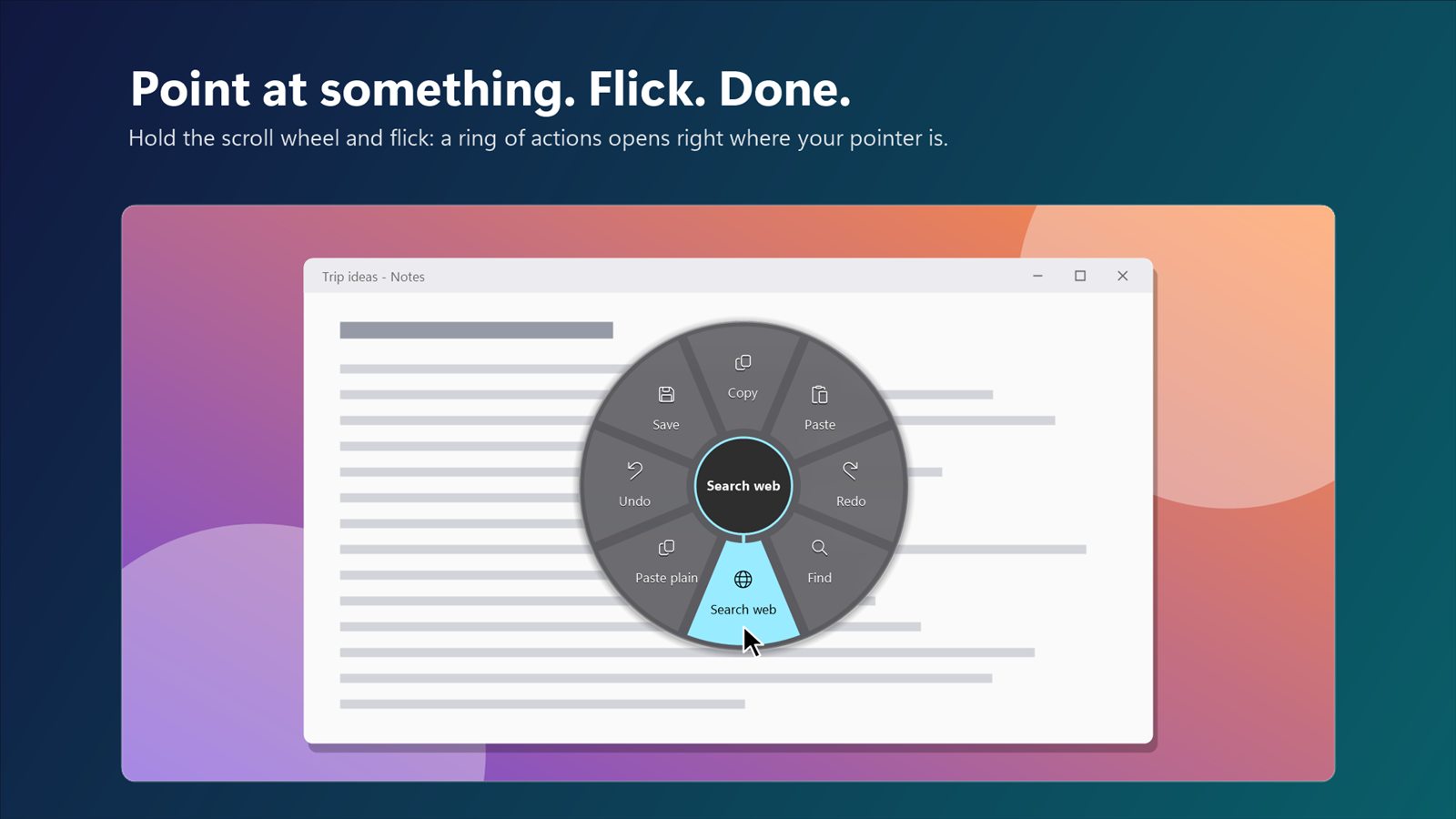
Hold the scroll wheel and flick. SpokeFlow runs the action in that direction: copy, undo, snap a window, open an app. Hold still and the whole ring appears.
Free 15-day trial · then a one-off £7.99 · no subscription
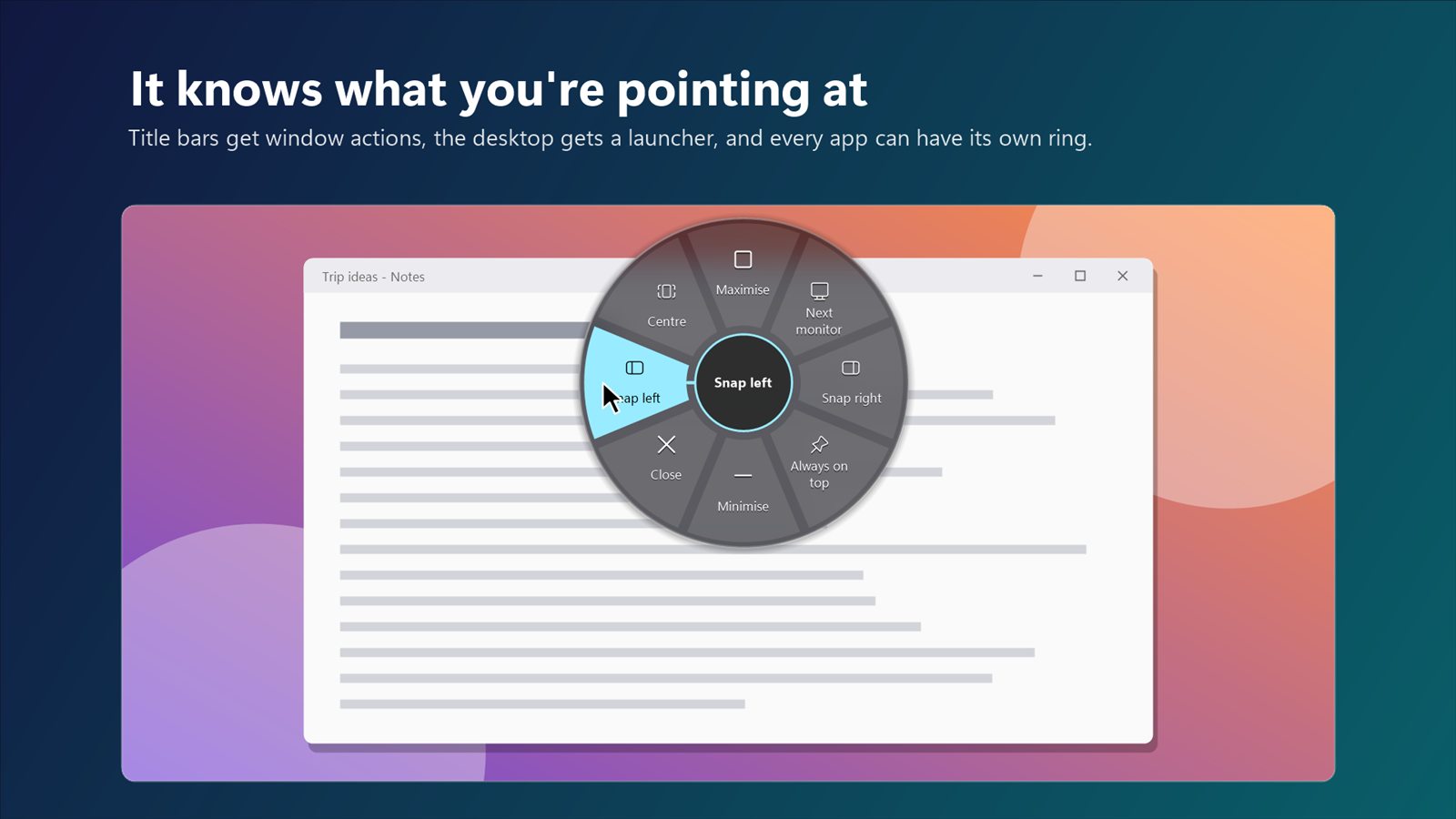
It knows what you're pointing at
Each ring fits the place you're pointing, so the right actions are always one flick away.
Title bars
Snap left or right, maximise, minimise, centre, keep on top, or send the window to your other monitor.
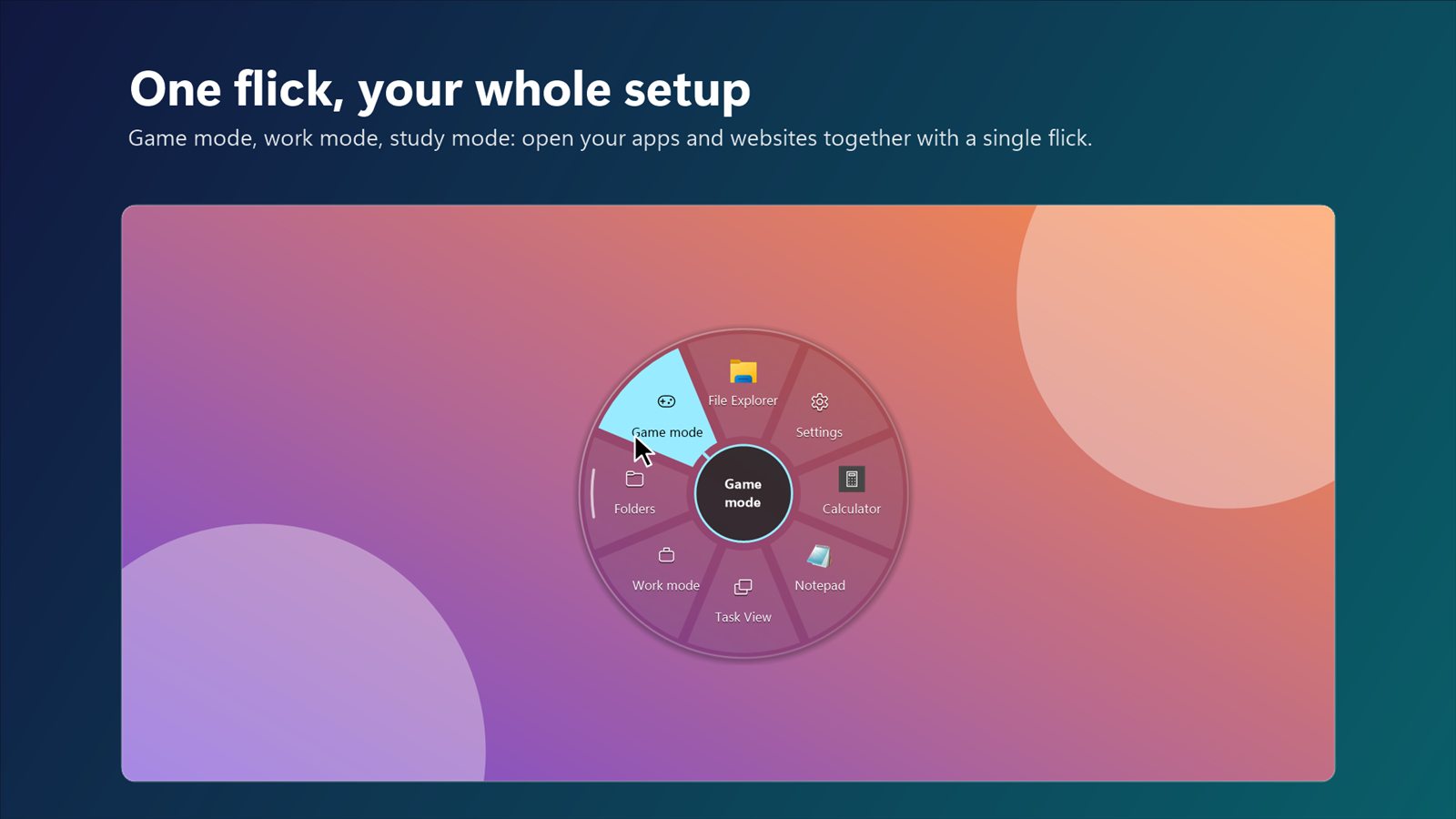
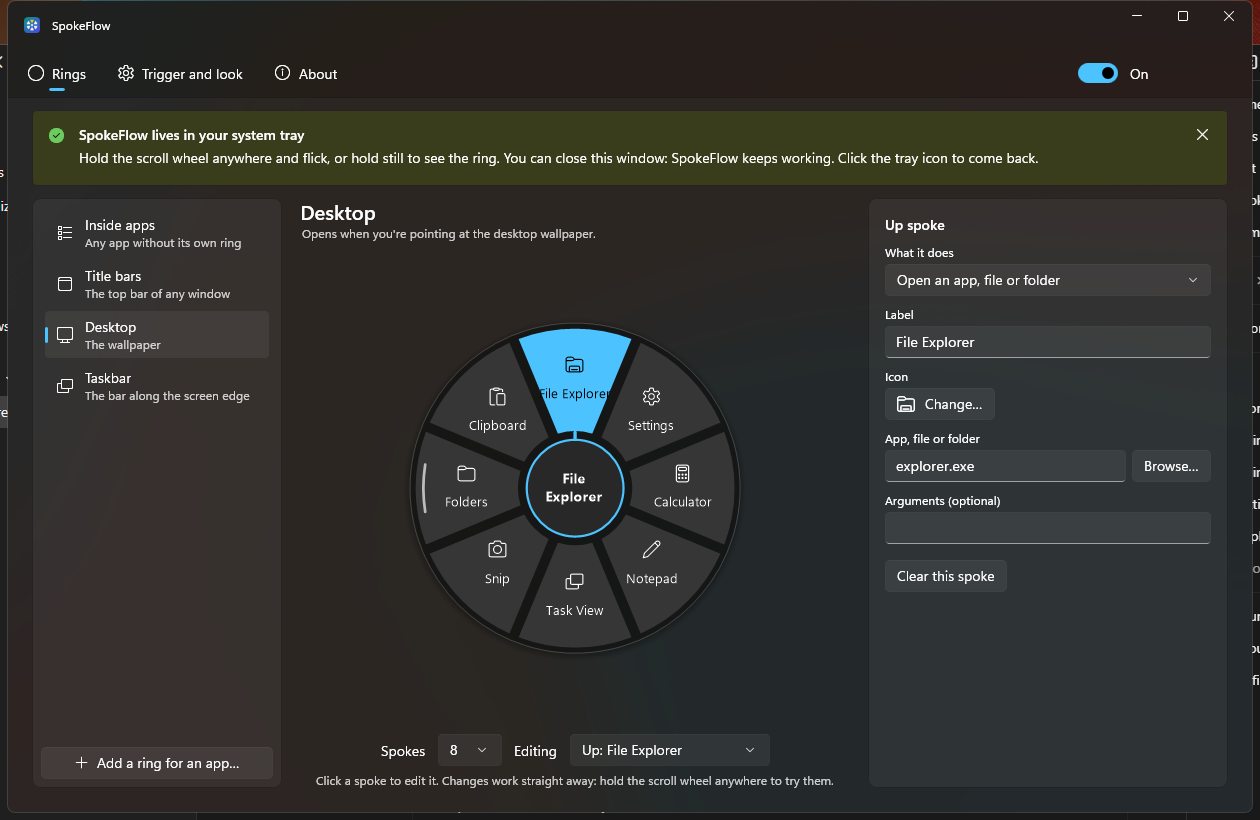
The desktop
A launcher for your favourite apps, showing their real icons.
The taskbar
Volume and music controls, without hunting for the right icon.
Inside any app
Each app can have its own ring. Browsers, File Explorer, Office and VS Code come with one ready-made.
Point at something. Flick. Done.
It takes about a second to learn, and your hand never leaves the mouse.
Hold the scroll wheel
Anywhere on screen, over whatever you want to act on.
Flick in a direction
Let go and the action in that direction runs. Hold still instead to see every option.
That's it
A plain middle click still works exactly as before, so links still open in new tabs.
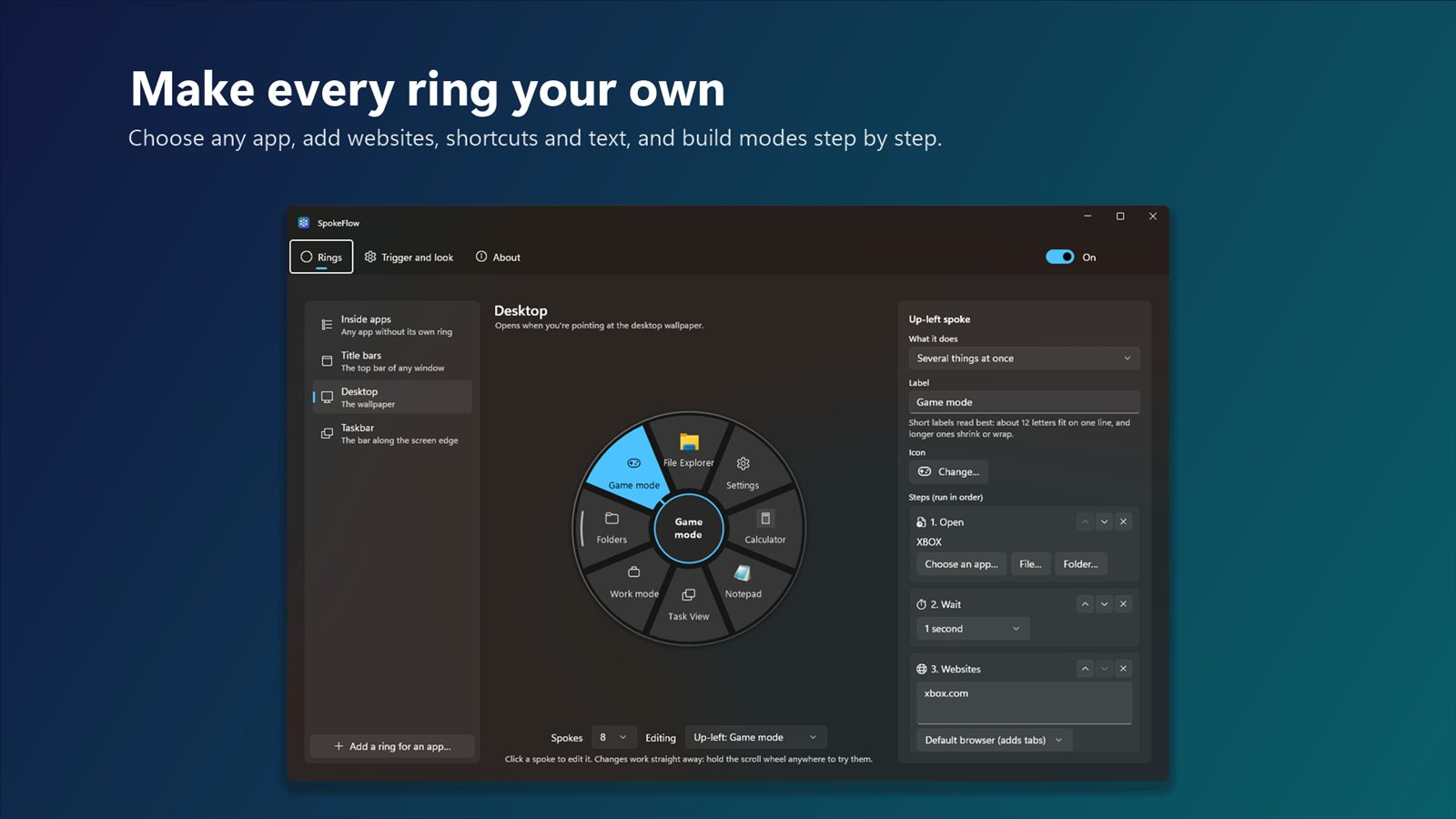
Make every ring your own
Start with the ready-made rings, then change anything. Changes work instantly, so you can try them straight away.
One flick, your whole setup
Make a game, work or study mode that opens your apps and websites together.
Shortcuts and text
Send keyboard shortcuts, type text (with today's date or time), or open files, folders, websites and commands.
Search and paste smarter
Search the web for the text you've selected, or paste without the formatting.
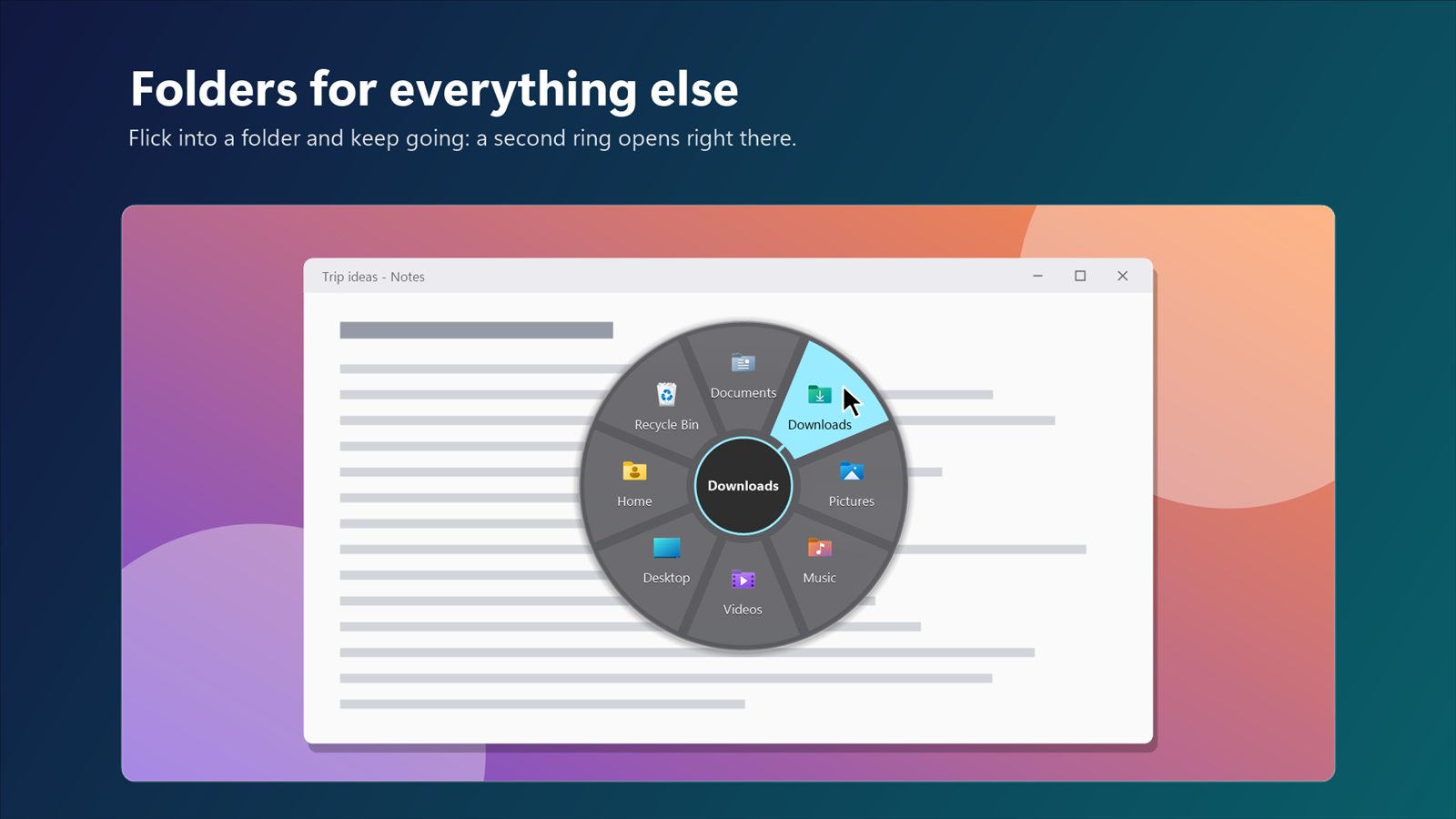
Folders
Flick into a folder and keep going: a second ring opens right where you are.
Icons your way
Real app icons, any emoji, your own picture, or a coloured symbol. 4 to 8 spokes per ring, with your own labels.
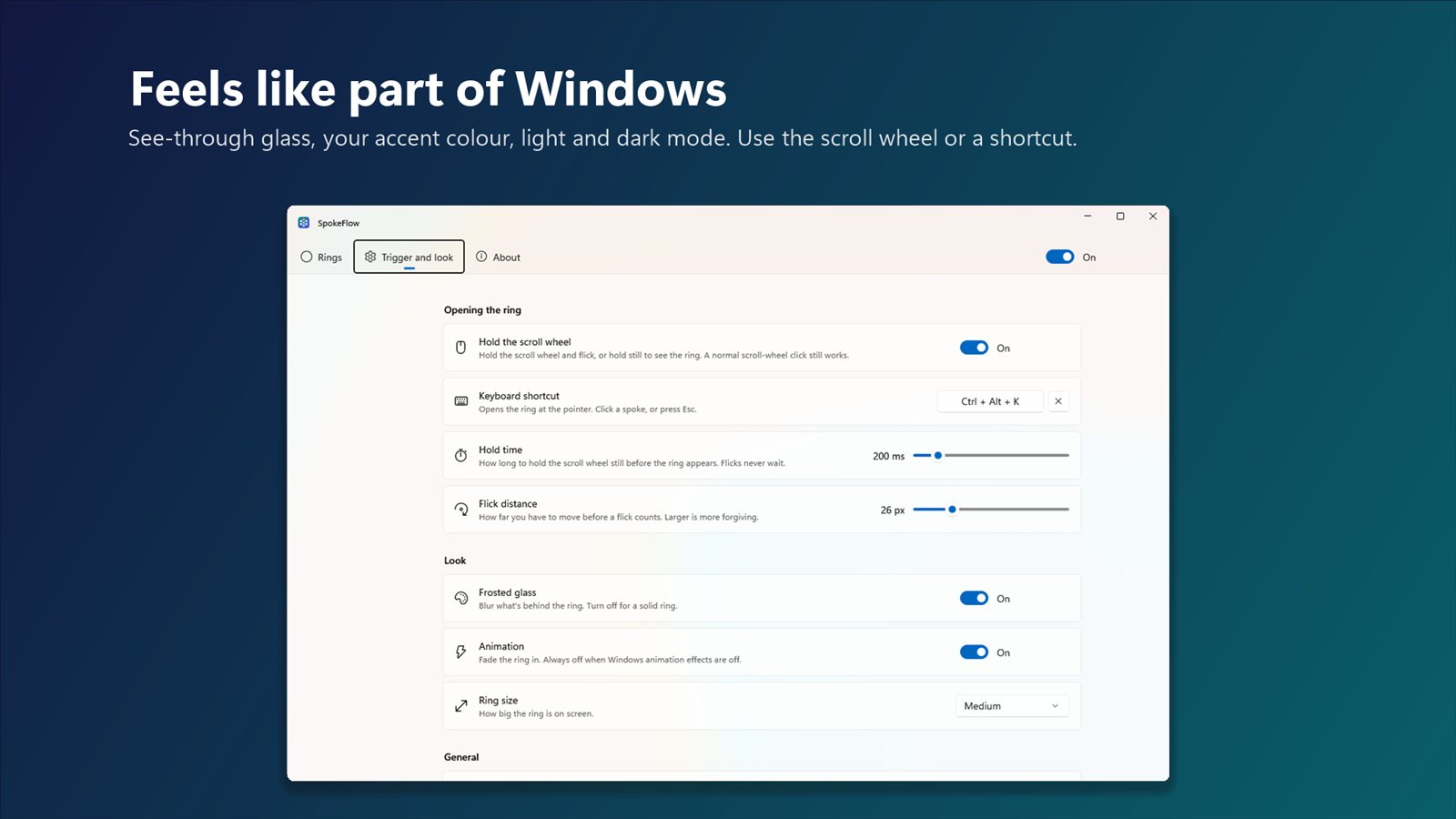
Feels like part of Windows
See-through glass in your accent colour, in light or dark mode. Works at screen edges and on maximised windows.
Take a look
Questions
Is there a radial menu or pie menu for Windows 11?
Windows doesn't have one built in. SpokeFlow adds one: hold the scroll wheel anywhere and flick in a direction to run that action, or hold still to see the whole ring.
Does a normal middle click still work?
Yes. A plain scroll-wheel click with no movement is passed straight through, so opening links in new tabs and closing tabs work as before.
Can I open the ring without the scroll wheel?
Yes. You can also open the ring with a keyboard shortcut you choose, under Trigger and look in the settings.
Is it free?
Every feature is free to try for 15 days. After that it's a one-off £7.99 through the Microsoft Store. If the trial ends, SpokeFlow pauses and keeps all your rings for when you buy.
It says my ring shortcut is already in use.
Another program already owns that key combination. Pick a different one under Trigger and look > Keyboard shortcut.
Does it see what's on my screen?
Only for the frosted-glass look: it blurs the small patch of screen behind the ring and keeps it in memory while the ring is open. It's never saved or sent anywhere, and you can turn the effect off. Read the privacy policy.
Try SpokeFlow free for 15 days
Works on Windows 11 and Windows 10. Then it's £7.99, once.

Also from FlowApps: CornerFlow
Mac-style hot corners for Windows. Flick into a corner to show the desktop, open Task View or lock your PC.